


Running the hotel side of a casino property requires more than managing rooms and reservations.
The Message Center has been updated to make everyday communication easier to manage.
Hotel teams often receive many different types of messages throughout the day: guest questions, housekeeping requests, maintenance issues, staff communication, and announcements. When all of those messages arrive in the same place, finding the right message at the right time can become difficult.
The new Message Center gives teams more ways to filter, search, organize, and personalize their inbox, helping them spend less time looking for information and more time taking action.
This update introduces:
- A redesigned inbox with new filters
- More message actions
- Message type labels
- Advanced Search
- Custom folders
- Message Center Preferences
- Message Digest emails
- Combined Mailbox preferences
1. A Smarter Message Center Inbox
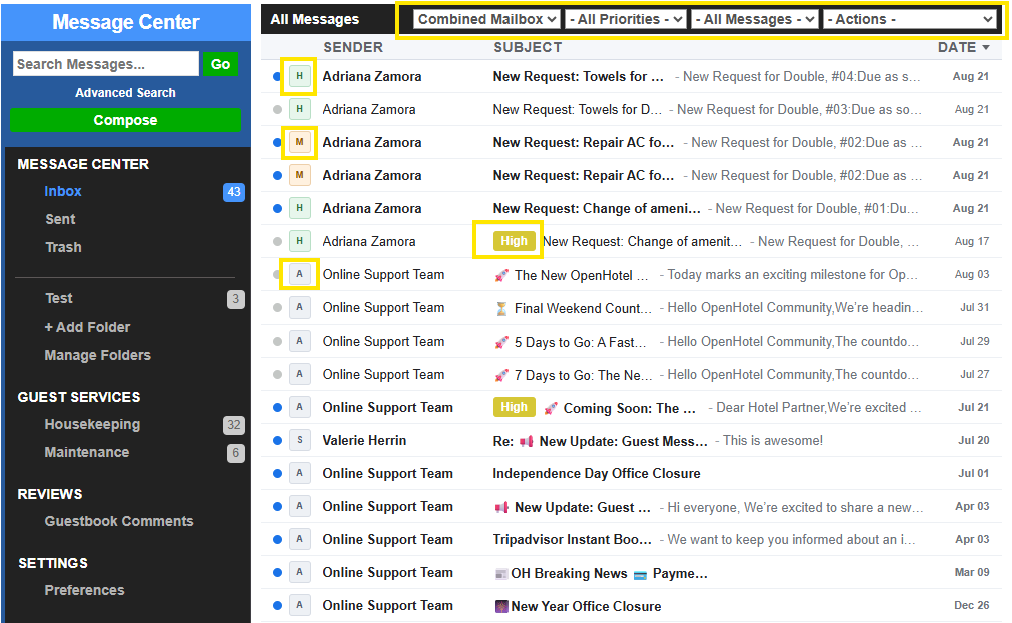
The updated inbox gives you several filters at the top of the Message Center.
Instead of scrolling through every message, you can narrow down what you want to see.
Combined Mailbox
The Combined Mailbox filter lets you choose which type of communication you want to review.
Available options include:
- Combined Mailbox — See the different supported message categories together.
- Staff — Messages from staff at the property.
- Guest Messages — Communication with guests.
- Housekeeping — Housekeeping-related requests.
- Maintenance — Maintenance-related requests.
How this helps in a hotel
Imagine the front desk receives a guest message asking for towels while the engineering team is trying to find an air-conditioning repair request.
Instead of both teams searching through the same full inbox, they can filter the Message Center.
The housekeeping team can select Housekeeping, while engineering can select Maintenance.
That means less searching and faster follow-up.
2. Filter Messages by Priority
You can also filter messages according to their priority.
Priority options include:
- Standard
- High
- Urgent
This makes it easier to identify which messages may need attention first.
Hotel example
During a busy check-in period, the inbox may contain several routine requests along with an urgent maintenance issue.
Rather than reviewing every message individually, the team can filter for Urgent messages first and address the most important situations before returning to standard requests.
3. Filter Messages by Status
The updated Message Center also lets you filter messages based on their current status.
Depending on the available options, teams can quickly focus on messages that are:
- Read
- Unread
- Answered
- Unanswered
Hotel example
A supervisor beginning an afternoon shift can filter the inbox to show Unanswered messages.
Instead of reviewing every conversation from the morning shift, they can immediately see which messages still need attention.
This can be especially helpful during shift changes.
4. More Actions Directly from the Inbox
The new Actions menu gives teams more control over messages without having to manage each one separately.
When messages are selected, available actions can include:
- Mark as Read
- Mark as Unread
- Mark as Answered
- Mark as Unanswered
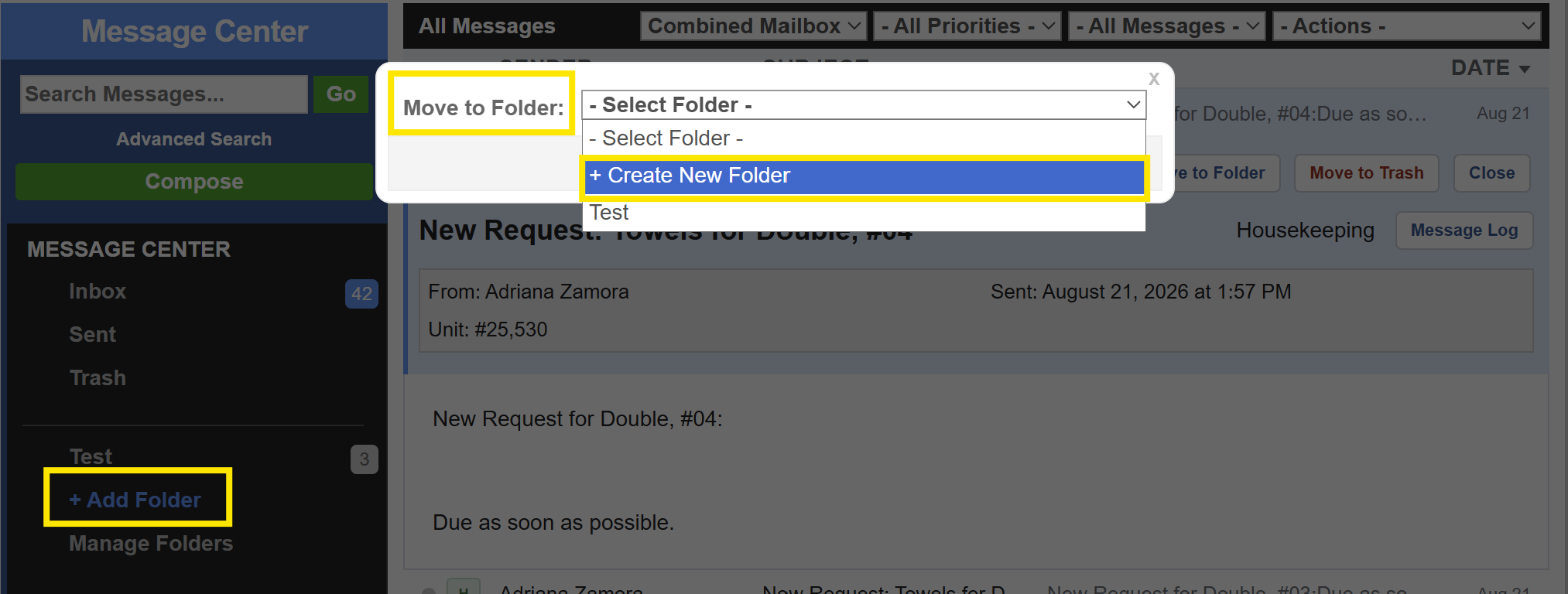
- Move to Folder
- Remove from Folder
- Move to Trash
If checkboxes are enabled in Preferences, multiple messages can be selected and updated together.
Hotel example
Imagine a manager reviews ten messages from the previous shift and confirms they have all been handled.
Instead of opening each message individually, the manager can select them and mark them as Answered at the same time.
This can save several small steps throughout the day.
5. New Message Type Labels
Messages now include letter labels that help you quickly understand where each message came from.
The labels are:
| Label | Message Type |
|---|---|
| S | Staff |
| A | Announcement |
| H | Housekeeping |
| M | Maintenance |
| G | Guest Message |
Announcements may include communication from OpenHotel or from an Enterprise organization.
Why the labels are useful
The labels provide quick visual context before you even open the message.
For example, seeing an M immediately tells you that the message is related to Maintenance, while a G identifies guest communication.
This is especially useful when the inbox is busy.
2. Find Messages Faster with Advanced Search
Sometimes you know a message exists, but you do not remember exactly where it is.
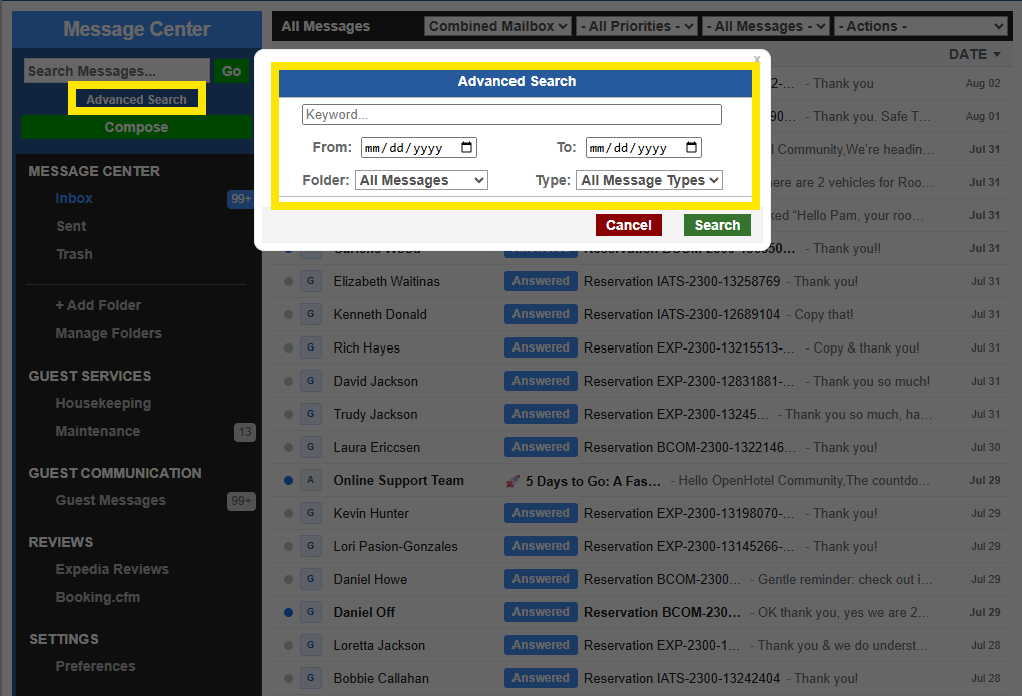
The new Advanced Search provides additional tools to help locate it.
You can search using options such as:
- Keyword
- Date range
- Folder
- Message type
Hotel example
A manager remembers that a guest reported an issue earlier in the month but cannot remember the exact date.
Instead of scrolling through hundreds of messages, the manager can enter a keyword such as air conditioning, select a date range, and narrow the search to the appropriate message type.
This can make finding older communication much easier.
3. Create Folders to Organize Messages
Hotel teams can now create their own folders inside the Message Center.
Select + Add Folder from the left-side menu, or create a new folder while using the Move to Folder option.
Folders can be used in whatever way makes the most sense for the property's operation.
Folder ideas
A hotel might create folders such as:
- Follow Up
- VIP Guests
- Management Review
- Group Reservations
- Lost & Found
- Weekend Issues
- Training Examples
Hotel example
A guest reports a problem that has already been sent to maintenance but requires a manager to follow up the next morning.
Instead of leaving the message mixed in with the general inbox, the team could move it into a Manager Follow Up folder.
The next shift knows exactly where to find it.
4. Personalize the Message Center with Preferences
A new Preferences section gives each user more control over how the Message Center works for them.
Go to:
Message Center → Settings → Preferences
From here, users can customize several options.
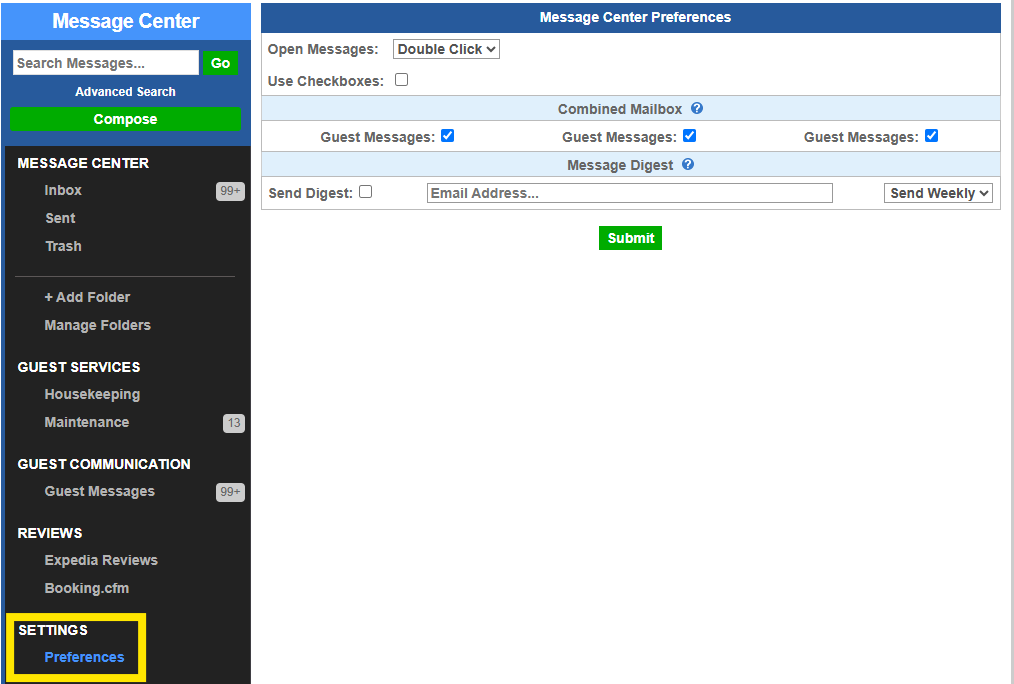
Choose How Messages Open
Users can choose whether messages open with:
- A single click
- A double click
This lets each person select the interaction that feels most comfortable.
Turn Checkboxes On or Off
Users can decide whether checkboxes appear next to messages.
Checkboxes are especially useful when working with multiple messages at the same time.
For example, you could select several completed conversations and mark all of them as answered.
Customize the Combined Mailbox
The Combined Mailbox preferences let users choose which message categories should appear by default in their combined inbox.
This gives teams more control over what they see when opening the Message Center.
Hotel example
A front desk user may want Guest Messages and Staff communication visible together, while another employee may need housekeeping and maintenance communication more frequently.
Rather than forcing everyone to work from exactly the same view, the Message Center can better match the user's daily responsibilities.
5. Receive a Message Digest by Email
The new Message Digest option allows users to send Message Center information to an email address.
Users can enter an email address and select the available digest frequency.
This can help managers stay informed even when they are not continuously working inside the Message Center.
Hotel example
A general manager may not monitor the Message Center throughout every shift.
A Message Digest can provide another way to review communication and stay aware of activity.
It can also be useful for managers responsible for more than one area of the property.
Putting It All Together
Consider a busy hotel on a Saturday afternoon.
A guest asks for extra towels. Another guest reports that the air conditioner is not cooling properly. A supervisor sends a staff message, and an announcement is also waiting in the inbox.
With the updated Message Center:
- Housekeeping can filter for Housekeeping messages.
- Maintenance can focus on Maintenance requests.
- A manager can filter for High or Urgent items.
- The next shift can review Unanswered messages.
- Messages that require additional attention can be moved into a custom Follow Up folder.
- Managers can use Advanced Search to find previous conversations.
- Each user can adjust their Preferences to create a Message Center view that works for their role.
The result is a Message Center that is easier to navigate and better suited to the way hotel teams actually work.
Quick Tip
You do not need to use every new feature at once.
A good place to start is to:
- Choose the messages you want in your Combined Mailbox.
- Turn on checkboxes if you regularly manage several messages together.
- Create one or two useful folders.
- Try filtering by Unanswered at the beginning or end of a shift.
Small changes can make a busy inbox much easier to manage.